Guide
Why screenshot text looks blurry
Open the original screenshot at 100% first. If it is sharp there, the blur was introduced by display scaling, resizing, compression or a preview. If the original is already fuzzy, recapture the source before editing or converting it.
Locate the step that lost detail
- Open the original file
Use the actual download rather than a thumbnail or messaging preview. Inspect text at 100% zoom.
- Compare dimensions
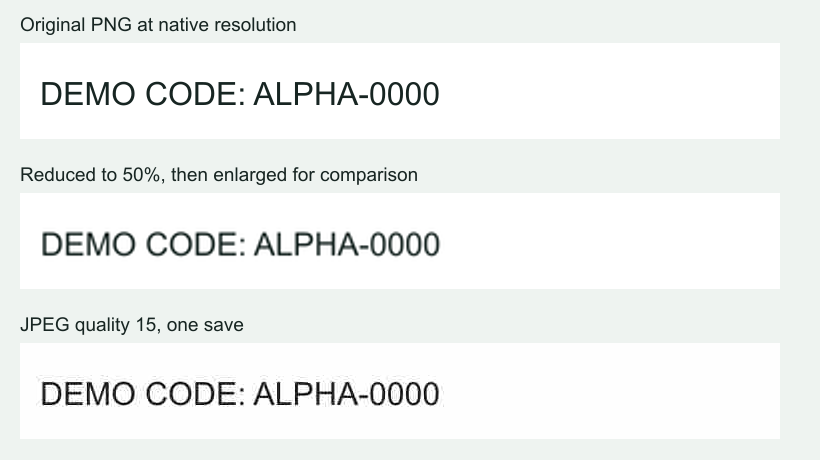
Compare the original width and height with the version you sent. A 1200-pixel image reduced to 600 pixels has fewer samples for each letter.
- Check the format
PNG keeps the decoded screenshot pixels losslessly. JPEG can add halos and blocks around high-contrast text, especially after repeated saves.
- Check the destination
If only the chat or document preview is blurry, download its attachment or open its full-size view before recapturing.
Start with enough detail
Capture the text at a readable page zoom and a useful viewport width. Zooming an already small screenshot does not recreate the lost letter shapes. If changing page zoom changes the layout, check that you still captured the intended state.
Keep a lossless original before annotations and resizing. Work from that original when producing several output sizes.
Related guide for this task Choose PNG or JPG for screenshot text
Do not squeeze a tall page onto one sheet
A long image fitted onto a single PDF page can have perfectly valid pixels while being too small to read at normal print size. Splitting it into several pages fixes the scale problem without inventing detail.
Send the file rather than a preview
When your messaging or ticket system offers file or document attachment, use it to preserve the original. Some platforms resize pasted images. Download your own sent attachment and compare dimensions as a practical check.
For documentation, crop unused space before reducing the entire image. Keep important text large enough for the final display width.
Extract text when words are the real goal
If a colleague needs an error message, send the text as well as the screenshot. OCR can help, but small or damaged lettering can produce the wrong characters. Compare identifiers, commands and numbers with the source.
Sharpening may change the appearance of an image; it cannot guarantee recovery of the original wording. Recapture or obtain the source text when accuracy matters.