Guide
How to add a browser frame to a screenshot
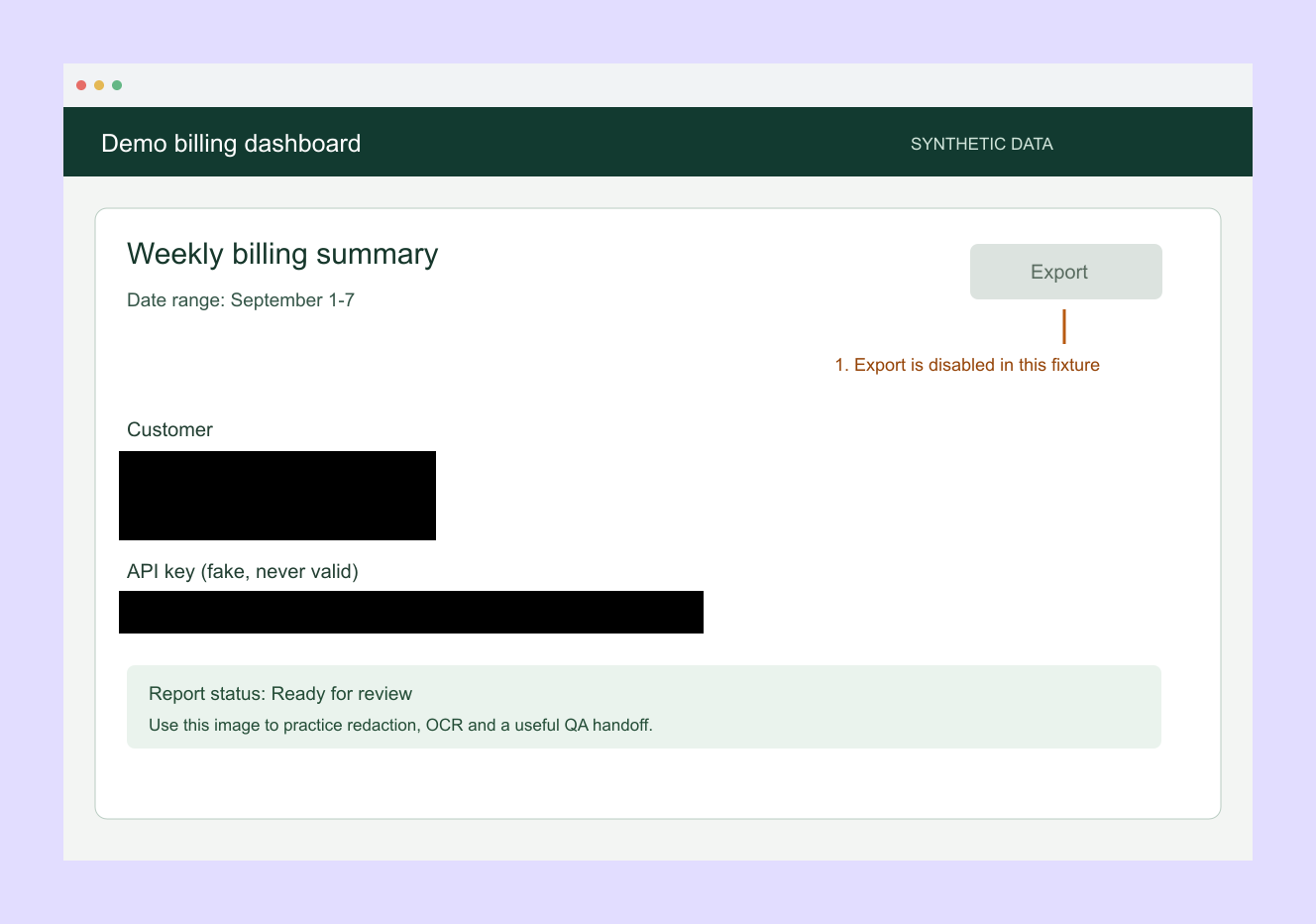
Open Captorify's free screenshot beautifier, choose an image, and adjust its frame, background and padding. Download the PNG once the preview is ready. A frame changes the presentation of an existing screenshot; it does not capture a webpage or repair missing detail.
Start with a readable screenshot
Use the original image when you have it. A screenshot copied from a compressed chat preview may already have lost small text detail. Framing it cannot restore those pixels.
Remove private information before adding decoration. If you use the redactor, open the redacted export and check it before loading it into the beautifier.
Create and export the frame
- Choose an image
Open the screenshot beautifier and select a PNG, JPEG or WebP image. To explore the controls first, select Try sample.
- Choose the presentation
Use the available background and frame controls. Adjust padding, corner radius and shadow while watching the preview.
- Check the composition
Make sure the browser frame has not made the content too small for the place you intend to publish it.
- Download the final PNG
Wait for the preview to finish updating, then select Download PNG. Open the saved file to check the frame, background and padding.
Related page for this task Open the free screenshot beautifier
Choose a frame that helps the reader
A browser frame can make a webpage recognizable in a release note or presentation. For a bug report, an undecorated screenshot may communicate the problem more clearly.
Keep the treatment consistent across a sequence. Use the same background and padding when images describe the same product flow, and avoid using decoration to imply a browser or device test you did not perform.
Keep the text readable at its destination
Review the exported image at the size readers will actually see. Extra padding gives the screenshot room, but also makes its content smaller when the whole image is scaled into a narrow article column.
If a UI label becomes hard to read, start from a tighter capture or reduce decorative space. Enlarging a low-resolution screenshot does not recreate the missing detail.
What the free beautifier does
The free beautifier adds styling to a saved image in your browser and exports a PNG. A decorative browser frame does not show how a live page renders in that browser.
For advanced styling of a synced Captorify capture, the paid editor is a separate workflow. Choose the free tool when you simply want to frame an image already on your device.
FAQ
Common questions.
Short answers about capture, privacy, sharing, and billing.