Use cases
Screenshot workflows for support, QA, security, and documentation
Prepare screenshots for support, QA, security reviews, documentation and product communication. Each workflow includes a practical handoff or worksheet so the recipient gets the context needed to act.
Why screenshots become risky
A screenshot is fast to take and easy to forward, which is exactly why it spreads more than people intend. The same image that explains a bug can also carry a customer email, an API key in a config panel, an internal URL, or the account someone happened to be signed into.
The teams below all face a version of the same problem: capture enough to be useful, remove what must not travel, and keep some control once the image is out. The use-case pages walk through how each one does that.
Customer support
Support screenshots help explain what a customer sees, but can also include billing details, internal notes or unrelated records.
Capture the relevant screen, remove customer details the recipient does not need, and send a checked attachment or protected link.
QA and bug reporting
A useful bug report pairs a screenshot with reproduction steps. Capture a full page when surrounding layout matters, or a region for one defect. Use the free public annotation tool on an existing image to point out the failure, and combine existing images when several steps matter. The paid cloud editor works on synced captures.
This workflow helps you record the starting state, expected result and observed failure so a developer can investigate.
Security reviews
Security review screenshots can expose tokens, internal tools and account details. Decide where the original can be stored before capturing.
Use opaque blackout to remove secrets from the exported image, then inspect it before sharing. If the original must remain off cloud storage, disable Sync captures to cloud before capture and use the free public redactor on the local file.
Documentation and product marketing
Documentation and product marketing need screenshots that look intentional, not just accurate. Beautify drops a capture onto a clean background with padding, rounded corners, and a soft shadow so a screen grab reads as a finished asset, with no watermark on the output.
This workflow covers producing consistent, presentation-ready visuals for help articles, onboarding guides, landing pages, and release notes.
Workflow checklist
Whatever team you are on, the safe screenshot habit is the same short loop. Run it before any capture leaves your hands.
- Capture only the screen the recipient needs.
- Cover sensitive data with opaque blackout, then reopen and check the exported file.
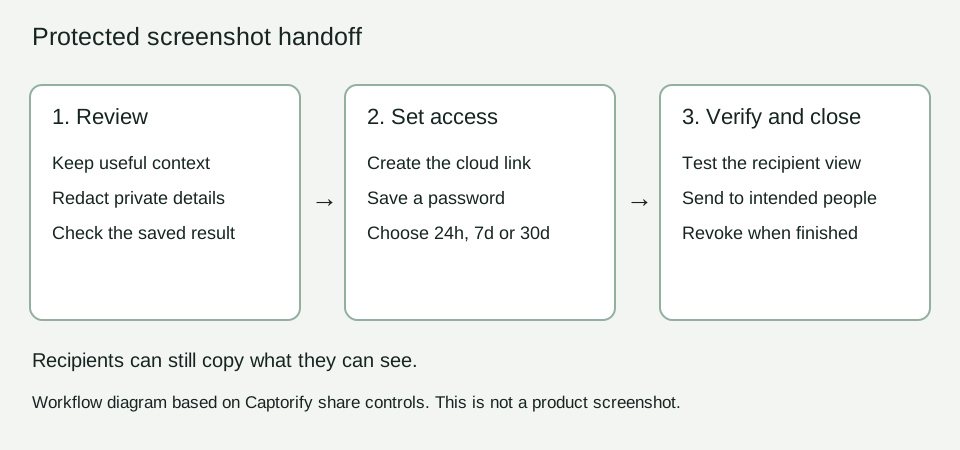
- Send the checked file, or use a paid protected link with a password and expiry. Recipients can still copy what they can see.
- Revoke a share link once the recipient no longer needs it.
Download the handoff that fits the task
Choose a report or worksheet for your task, then fill it in with screenshots and observations from your actual case.
Customer support screenshots without exposing customer data
Capture the issue, remove customer details the recipient does not need, and send the screenshot with the steps and…
Screenshot workflow for QA and bug reports
Pair a screenshot with the starting state, reproduction steps, expected result and observed result.
Redact secrets from screenshots for security reviews
Capture the relevant configuration or log, redact secrets and inspect the export before sending it to reviewers.
Create screenshots for technical documentation
Capture the view that supports the reader’s task, explain the relevant control and export a readable image.
Polished product screenshots, from the real UI
Capture your product’s real interface and frame it for a landing page, social post or documentation.