Guide
PNG or JPG: which should you use for a screenshot?
PNG is a useful default for screenshots with small text, flat colors and sharp UI edges. JPEG can reduce the size of photo-heavy images, but its lossy compression can affect fine detail. Compare exports of your own screenshot at the size people will read it.
Choose based on the content
Scroll sideways to read all columns.
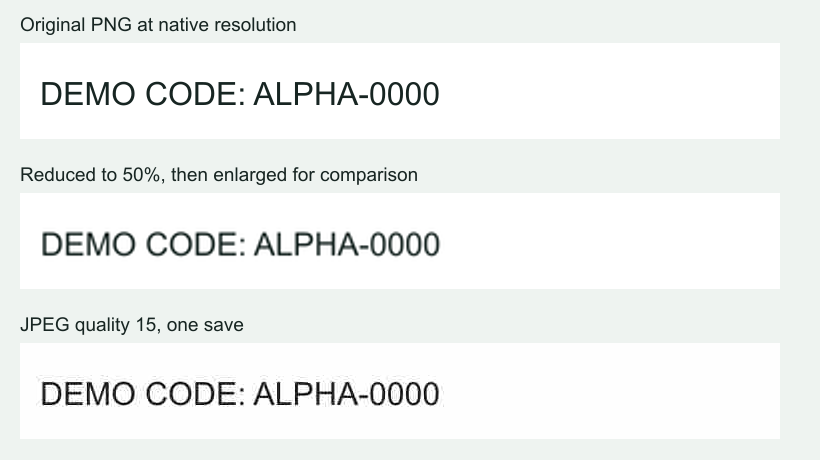
Compare PNG and JPEG from the same screenshot
The illustration above shows two ways text can lose detail: resizing an image and saving it as a low-quality JPEG. Its JPEG example uses quality 15 to make compression artifacts easy to see.
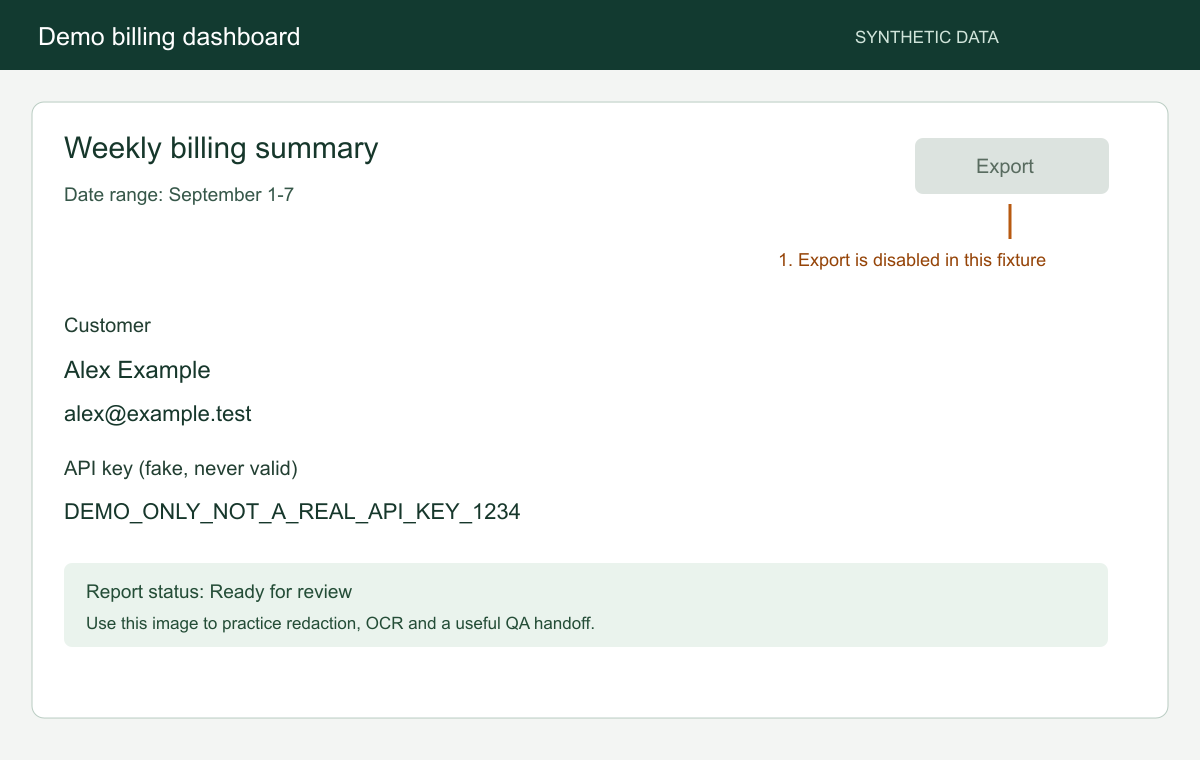
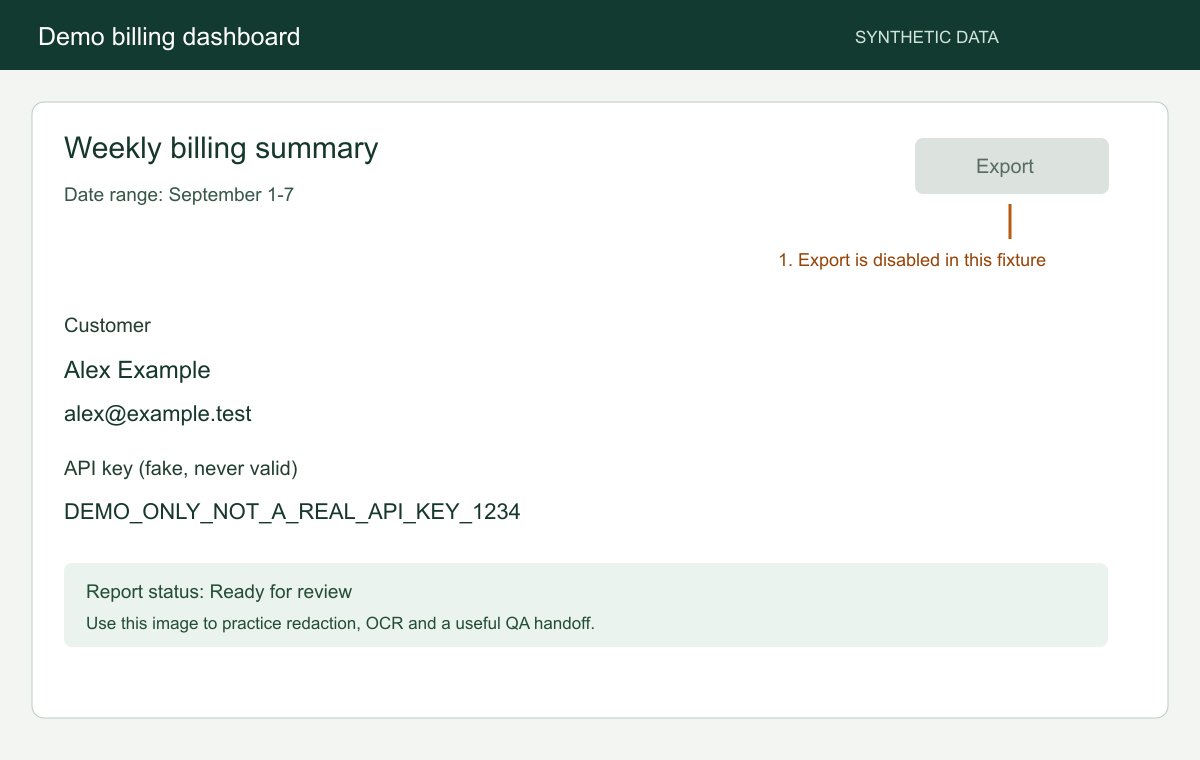
The table below compares a lossless PNG and a quality-85 JPEG made from the same 1200 x 760 sample dashboard. Both use Sharp 0.35.4; the JPEG uses 4:2:0 chroma subsampling. The sizes and visual results apply to this image and these settings.
Scroll sideways to read all columns.
Compare your own exports fairly
- Keep one original
Save the unedited original and make comparison copies from it.
- Keep dimensions equal
Export both copies at the same pixel dimensions so you can compare the formats without also comparing different image sizes.
- Record the settings
Record the encoder and JPEG quality setting if the exporting tool exposes them.
- Inspect size and detail
Compare file sizes and inspect the smallest text at 100% zoom and at the size your readers will see.
Avoid repeated quality loss
Repeatedly saving an already compressed JPEG can introduce further loss. Return to the original source when editing again. Converting a damaged JPEG to PNG preserves its current pixels, including existing artifacts.
A PDF container does not repair a poor source image. If a screenshot is unreadable before conversion, recapture it when possible.
Choose the next step
Keep the original PNG when sharp text matters. If several screenshots need to be shared together, combine them into a PDF. For presentation, add a frame or background, then check the exported image at its final display size.
If file size is the immediate problem, crop to the necessary context or divide an overly long capture into useful sections. Do not shrink important text until the attachment is unreadable.
FAQ
Common questions.
Short answers about capture, privacy, sharing, and billing.