Guide
How to copy text from a screenshot on Windows or Mac
On Windows, open the screenshot in Snipping Tool and use Text actions. On a supported Mac, use Preview’s text recognition. The free browser OCR tool is another option for an existing image without installing an extension.
Windows: Snipping Tool Text actions
- Open or take the screenshot
Open the image in Snipping Tool, or capture the relevant area with Win+Shift+S and open the resulting capture.
- Choose Text actions
Select Text actions to detect text. Use Copy all text, or select only the words you need.
- Paste and check
Paste into a text editor and compare it with the screenshot. Microsoft documents this recognition as local processing.
Mac: recognized text in Preview
- Open the image in Preview
Use a clear screenshot with readable text. Availability depends on the Mac, system version and language.
- Select recognized words
Move over the text and drag to select it. Control-click the selection and choose Copy Text when that option appears.
- Verify the pasted result
Check punctuation, line breaks and similar characters such as O/0 and l/1. If text cannot be selected, try a clearer image or the browser tool.
Browser option: an existing PNG, JPG or WebP
Open the image-to-text tool, choose the screenshot and start recognition. Edit the result, copy it or download a TXT file. You do not need a Captorify account.
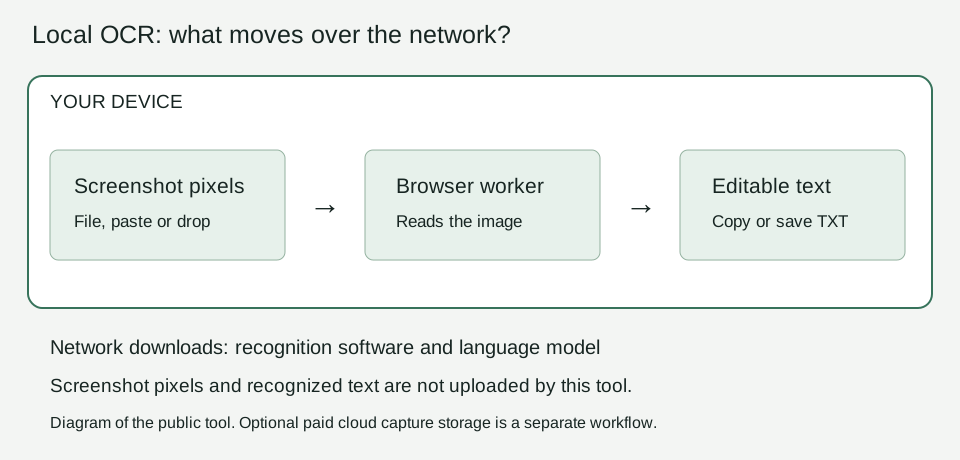
The browser downloads the recognition software and English model when needed. Image pixels and recognized text stay in the tool on your device. A first run needs a connection for those downloads.
Choose the smallest useful text region
Crop away unrelated navigation, icons and columns when you only need one message. OCR reading order can be wrong on dashboards and multi-column pages.
Do not treat successful recognition as verification. Proofread filenames, money amounts, dates and commands against the source before using them.
Keep the result as private as the image
Extracted text can contain the same names, tokens and account details as the screenshot. Review it before pasting into a shared chat or ticket. Redacting an image does not remove a previously copied text version.
When you need to send both, redact the image and separately edit the text. Avoid copying unnecessary identifiers in the first place.