Tool
Screenshot to PDF
Combine screenshots or split a long image into PDF pages.
Your image stays in your browser.No account, upload, watermark or analytics.
PrivacyEnable JavaScript to use this tool. Loading the local workspace when JavaScript is enabled. The answers below remain available without it.
See a long screenshot split into readable pages
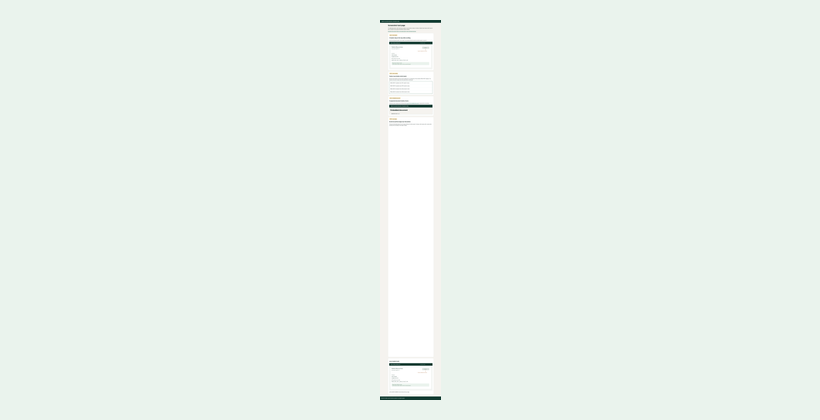
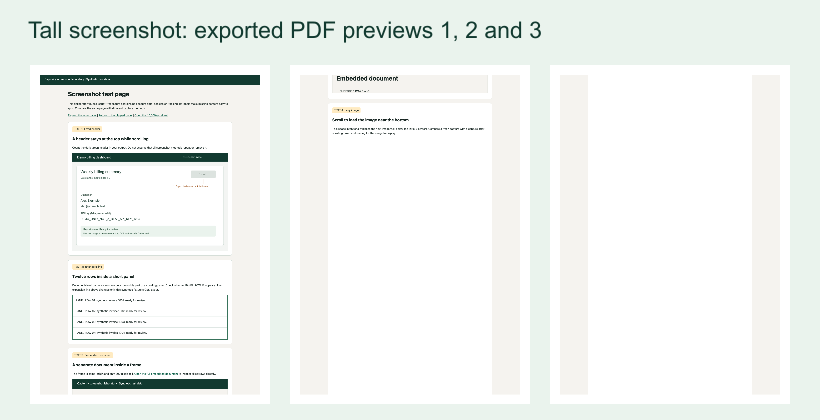
This complete 1265 × 7915 fictional screenshot was exported through this tool using A4, Small (18-point) margins and Split long images. The output contains five pages, each 595.28 × 841.89 points. The first three page previews appear below.
The source thumbnail shows the entire input. Download the original and the complete PDF to inspect text and page breaks. The screenshot keeps the clipped inner panel; conversion cannot reveal uncaptured rows.

FAQ
Questions about this tool
Are my images uploaded?
No. Images are processed in this browser. Using a free tool does not create a cloud capture.
Which files and sizes are supported?
PNG, JPEG and WebP, up to 20 MiB per image, 40 million pixels and 16,384 pixels on either side. A low-memory device may need a smaller image. Up to 12 images, 50 MiB and 60 million source pixels combined. Maximum 60 PDF pages and 100 MiB PDF output.
Why is processing taking longer?
Processing speed depends on the image and your device. Keep the tab open, or cancel and try a smaller image.
How are images arranged?
Reorder the image list before exporting. Choose A4 or Letter and the margin size. Split long images fits each image to the page width and continues it across additional pages; One page per image fits each complete image onto a sheet.
Why did my screenshot become several pages?
Split long images continues the rest of a long image on later pages. Inspect the page breaks: a split can cross a line of text.
Can I search or select text in the PDF?
No. This tool creates image-only pages without an OCR text layer.
Does the preview show every page?
It shows up to 12 pages at a time. Use Previous pages and Next pages for the remaining previews. The download includes the complete document.