Feature
A safer screenshot extension for Chrome
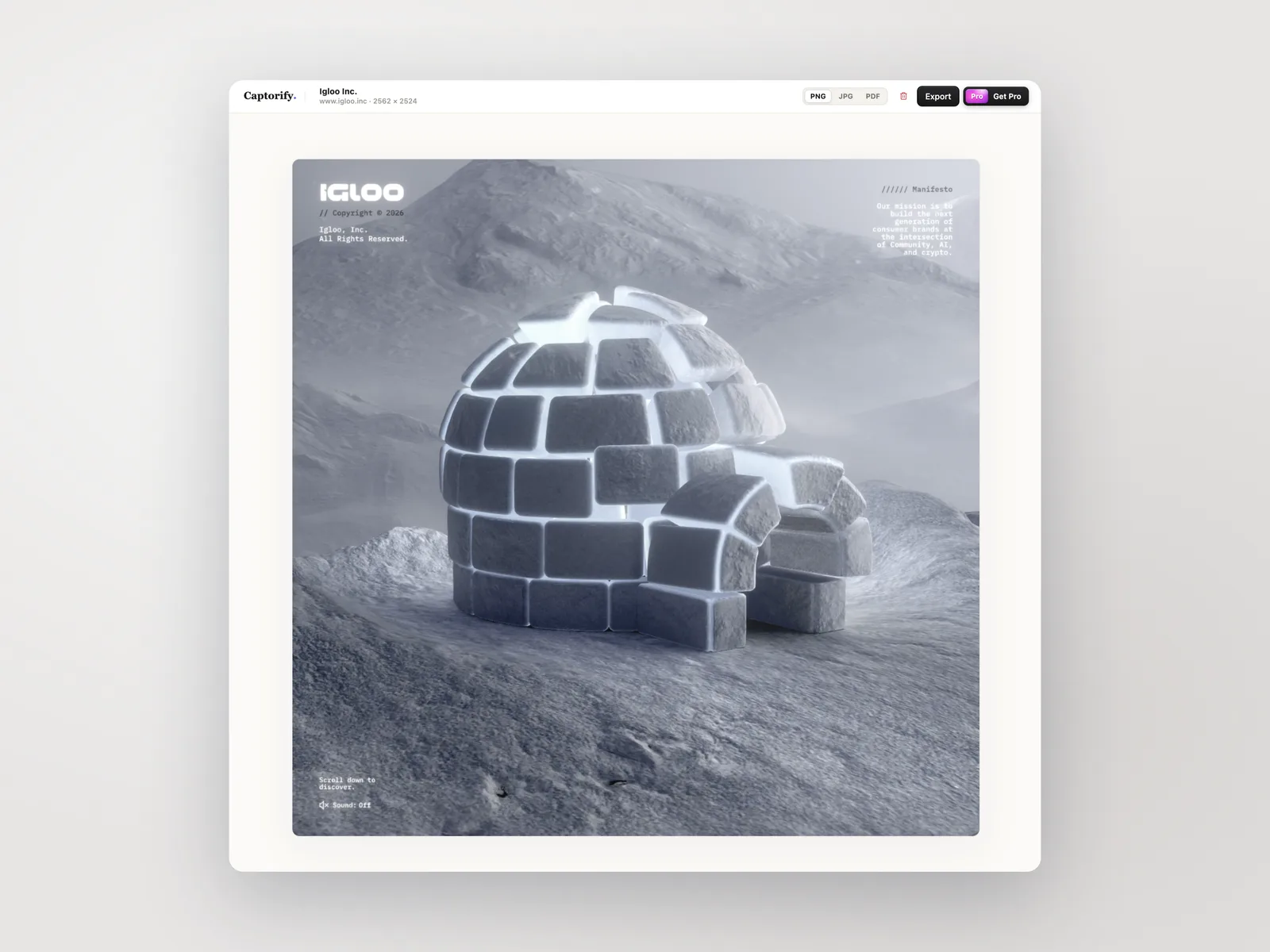
Captorify for Chrome captures full pages, visible areas, and regions, then keeps the workflow in the browser so you can annotate, redact, export, or share only after reviewing the screenshot. Free capture stays local unless you choose paid sync or sharing.
Step 01
What Captorify captures in Chrome
Captorify gives you three ways to capture a tab in Chrome. Full-page capture scrolls the page and stitches it into one tall image, visible-area grabs exactly what is on screen, and region lets you draw a box around just the part you want. Whichever mode you pick, the screenshot opens in an editor where you can review and finish it before it goes anywhere.
- Full-page (scrolling), visible-area, and region capture.
- Every capture opens in an editor for review before you share it.
- Local capture and export are free; sync and sharing are optional paid extras.
Step 02
Install and first capture
Install Captorify from the Chrome Web Store, then pin it so the toolbar button is one click away. You can start capturing right away because everything needed to take and export a screenshot is already in the extension.
Step 03
Edit before sharing
Every capture lands in an editor before it leaves your browser, so nothing is shared until you have looked it over. The tools cover the everyday markup most screenshots need: draw a box or ellipse, point with an arrow, sketch freehand, add text, highlight a section, and crop to the part that matters.
- Box, ellipse, arrow, freehand, text, highlight, and crop.
- Redaction overwrites pixels so masked content cannot be recovered.
- Beautify adds a background, padding, rounded corners, and a shadow.
Step 04
Export or share
Exporting is free and stays on your machine. Save any capture as a PNG, JPG, or PDF straight from the editor, with no account and no upload. PDFs are paginated automatically and sized to A4, with the orientation chosen from the image so long pages stay readable.
- Free local export to PNG, JPG, or PDF, no account needed.
- Auto-paginated A4 PDFs with orientation chosen from the image.
- Pro share links with optional password, expiry, view counts, and manual revoke.
Step 05
Privacy and permissions
Captorify asks for the narrowest set of permissions required to capture the tab you are on, and the free capture-and-export path stays entirely on your device with no network calls back to Captorify. A screenshot you take and export locally is never uploaded, unless sync is enabled.
- Free capture and export make no network calls to Captorify.
- Paid cloud captures are encrypted at rest with AES-256.
- Deleted captures have a 30-day grace period before they are purged.
Step 06
Chrome limits
Full-page capture handles long pages by scrolling and stitching, but extremely tall pages have a ceiling. Captorify composes up to 100 tiles and caps the output at roughly 32,000 pixels tall, which covers almost any real page.
- Up to 100 tiles per full-page capture, output capped around 32,000 pixels.
- Very long pages are split or truncated, and you get a warning when that happens.
Step 07
Related workflows
Each capability here has a deeper page if you want the detail. The full-page screenshot feature covers how stitching handles sticky headers and lazy-loaded content, the editor page walks through every annotation tool, and the redaction page explains how permanent blackout works.