How to take a scrolling screenshot
A scrolling screenshot, also called a full-page or long screenshot, captures a whole webpage, including the part below the screen. Chrome, Firefox and Edge can each take one without extra software, and a capture extension makes it a single click.
Pick the method for your browser
| Browser | Built-in way |
|---|---|
| Chrome | Built-in way:Open DevTools, open its command menu and choose Capture full size screenshot. |
| Firefox | Built-in way:Right-click the page, choose Take Screenshot, then Save full page. |
| Microsoft Edge | Built-in way:Open the browser menu, choose Screenshot, then Capture full page. |
| Any of the three | Built-in way:Use the Captorify extension and choose Full page. |
Take one with the Captorify extension
Install the free extension
Add Captorify to Chrome, Firefox or Edge. Capturing and exporting need no account.
Choose Full page
Open the page, click the Captorify toolbar button and choose Full page. The default keyboard shortcut is Alt+Shift+P. Captorify scrolls the page from top to bottom and joins the parts into one image.
Review the result
Check the first and last rows, images that load late and any capture warning before you rely on the screenshot.
Export PNG, JPG or PDF
Save the capture to your device as an image, or as a PDF when it needs to be printed or attached.
What a scrolling screenshot includes
A scrolling screenshot follows the main page from top to bottom. It does not scroll inside a separate panel, such as a table with its own scrollbar, and it does not open collapsed sections or embedded documents.
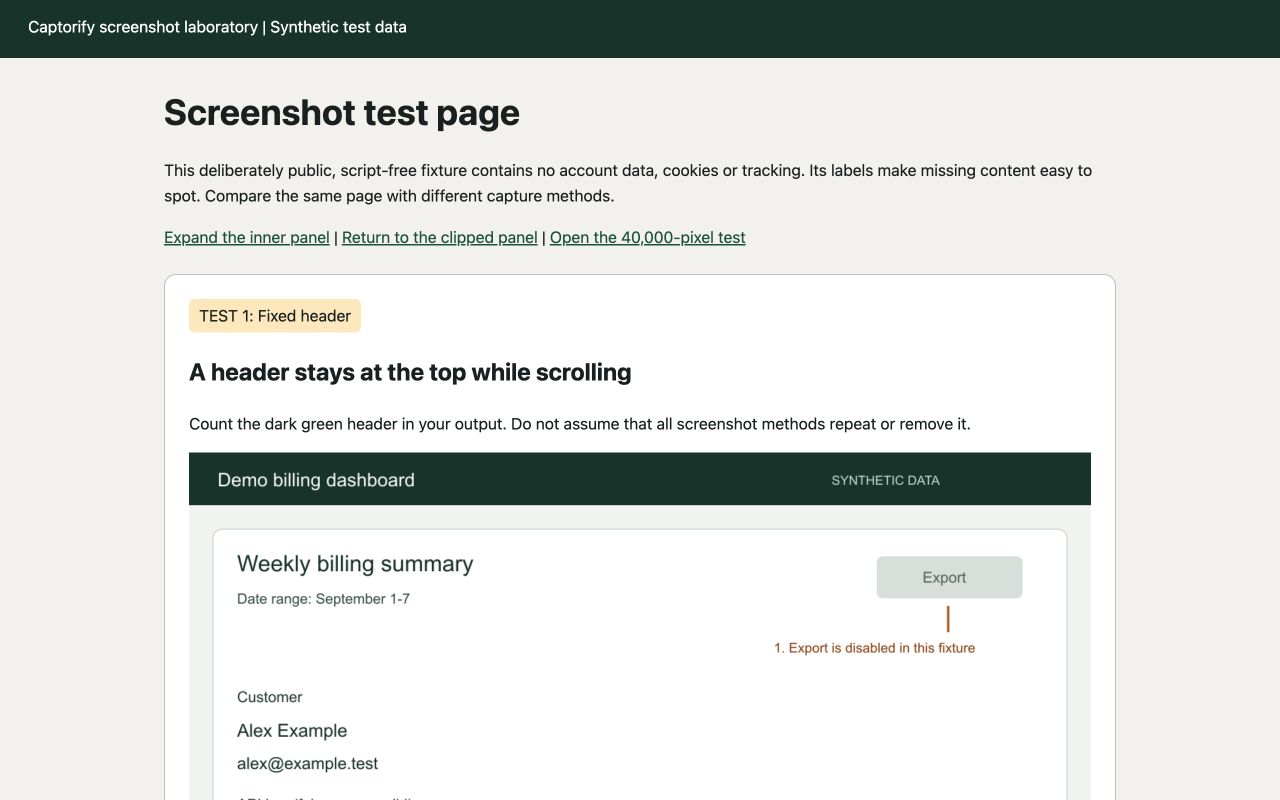
Captorify scrolls to the bottom of the page and back before it captures, so images that load late have a chance to appear. It hides sticky headers by default so they are not repeated down the image. Very long pages can reach a capture limit. When that happens the result shows a warning, so check the last row.
If the result is cut off or has gaps
| Symptom | What to try |
|---|---|
| Blank or missing images | What to try:Scroll to the bottom of the page once so everything loads, go back to the top and capture again. |
| A table shows only a few rows | What to try:The table scrolls on its own. Expand it, export its data or capture it in sections. |
| A header repeats down the image | What to try:Use a tool that hides sticky headers, or hide the header before capturing. |
| The capture stops early | What to try:Capture the page in two or three sections and keep a small overlap. |