Guide
How to take a full-page screenshot in Microsoft Edge
Open Edge’s Screenshot tool from the browser menu, choose Capture full page, review the preview and save the image. You do not need an extension for a one-off full-page capture.
Use Edge’s built-in full-page capture
- Prepare the page
Open the page and close menus or dialogs that should not appear. Scroll through it once to load images, then return to the top.
- Open Screenshot
Open the three-dot browser menu and choose Screenshot. On Windows, Ctrl+Shift+S opens the same tool. If your keyboard shortcut differs, use the menu.
- Choose Capture full page
Choose the full-page option rather than an area selection. Wait for Edge to display its preview.
- Check and save
Inspect the top, bottom, charts and account details. Use the save control to download the image, or copy it if that is the option you need.
Full page means the page’s rendered content
A full-page screenshot can include the document below the screen, but it does not automatically open collapsed sections or reveal every row in an independently scrolling panel. An embedded document has its own viewport too.
The example fixture below separates these problems: a fixed header, a long page, delayed images, an invoice panel and an embedded document. It lets you check the result on your own Edge version.
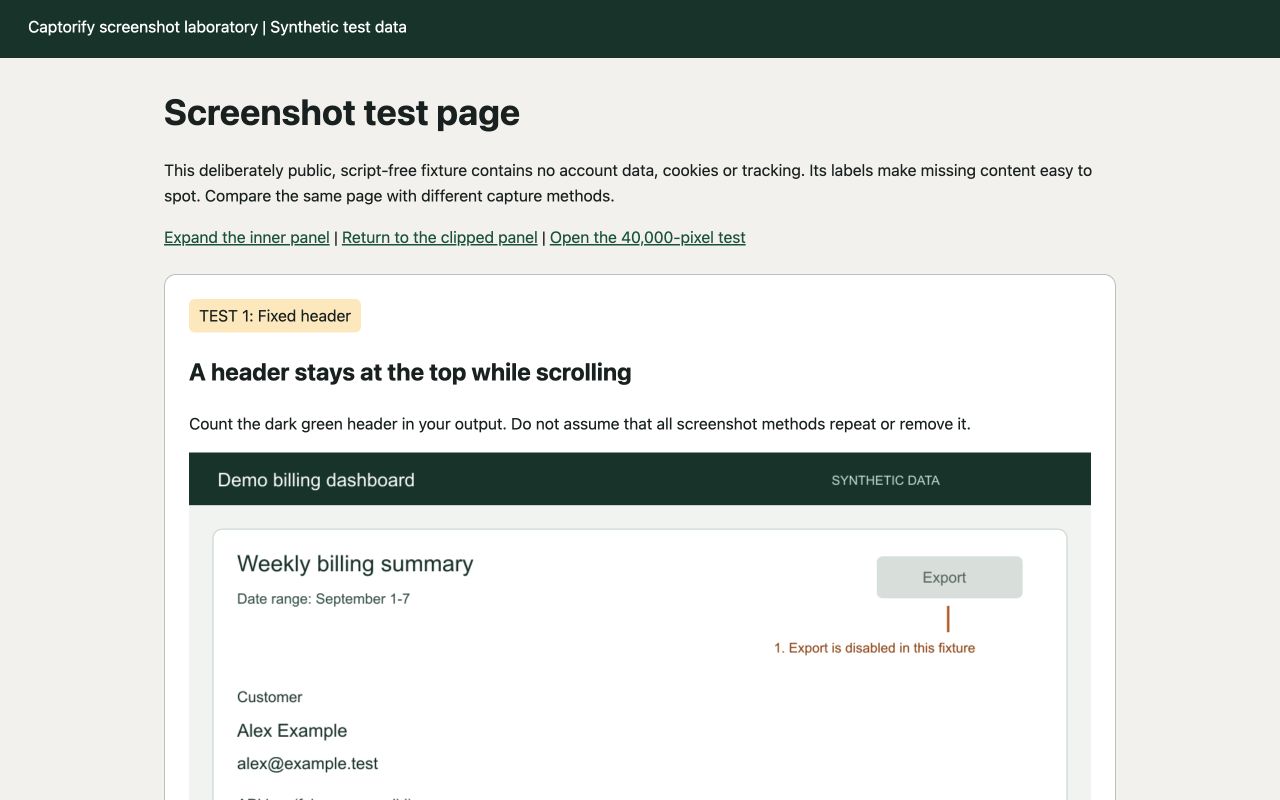
Try the same input: Open the screenshot test page
If part of the result is missing
Choose PNG or a readable PDF
Keep the downloaded image when the visual arrangement matters. For a long screenshot that must be printed, split it across normal-sized PDF pages instead of shrinking everything onto one sheet.
Converting an image to PDF does not restore the webpage’s selectable text or links. Browser Print to PDF is a separate option that can reflow the page using its print layout.
Remove private details before sending
Review names, account identifiers, browser chrome captured by other methods and any secrets in the page. Opaque pixel replacement is appropriate when the text must not remain in the exported image.
Captorify’s browser extension is optional for repeat capture and local PNG, JPG or PDF export. Paid extension features and cloud sharing are separate from the free tools on this website.
A separate Edge Print to PDF example
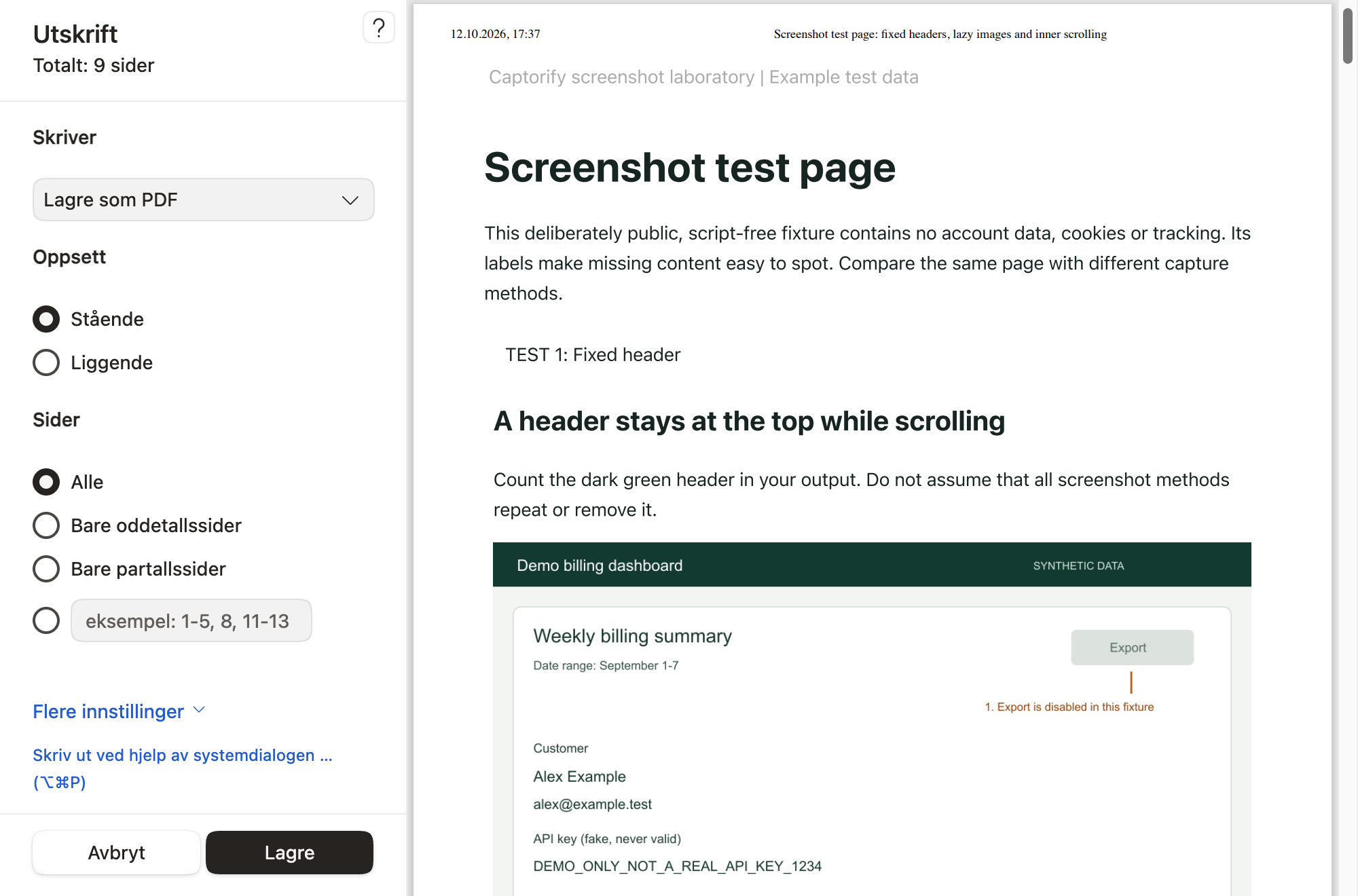
For a document layout, open Print and choose Save as PDF. On our fictional page, Edge 155’s actual native preview generated nine A4 pages, measured at 594.96 × 841.92 points. The observed defaults were Standard margins, headers and footers on, and background graphics off. This example is separate from the equal-margin Chrome comparison.
The linked file contains the complete native preview PDF retrieved from Edge’s preview iframe. We did not complete the Save As dialog. Printing reflowed the fixture and exposed all twelve invoice rows, while the embedded document remained incomplete. Inspect your own preview because print styles and defaults vary.
We could not verify Edge’s native Screenshot menu, Capture full page preview or image download with this recorder. The steps above follow Microsoft’s documentation; this print-preview image does not demonstrate those screenshot actions.