Feature
Capture an entire webpage in one screenshot
Full-page capture creates one image from the visible and below-the-fold parts of a webpage. Captorify explains when full page, visible area, or region capture is best, what can break stitched captures, and which export format fits the next workflow.
Step 01
What full-page capture means
Full-page capture stitches together everything from the top of a webpage to the bottom, including the parts below the fold that you would normally have to scroll to see. Captorify scrolls the page tile by tile, captures each section, and composes them into one continuous image.
- Captures the full scroll height in a single image.
- Auto-hides sticky and fixed headers so they do not repeat down the page.
- Works locally on free captures, with no upload required.
Step 02
Capture modes compared
Captorify offers three modes so you can match the capture to the job. Full page grabs the entire scroll height, visible area captures only what is on screen right now, and region lets you draw a selection around a specific part of the page.
- Full page: the entire scrollable document, stitched into one image.
- Visible area: exactly what is on screen, captured instantly.
- Region: a selection you draw around the part that matters.
Step 03
Real long-page example
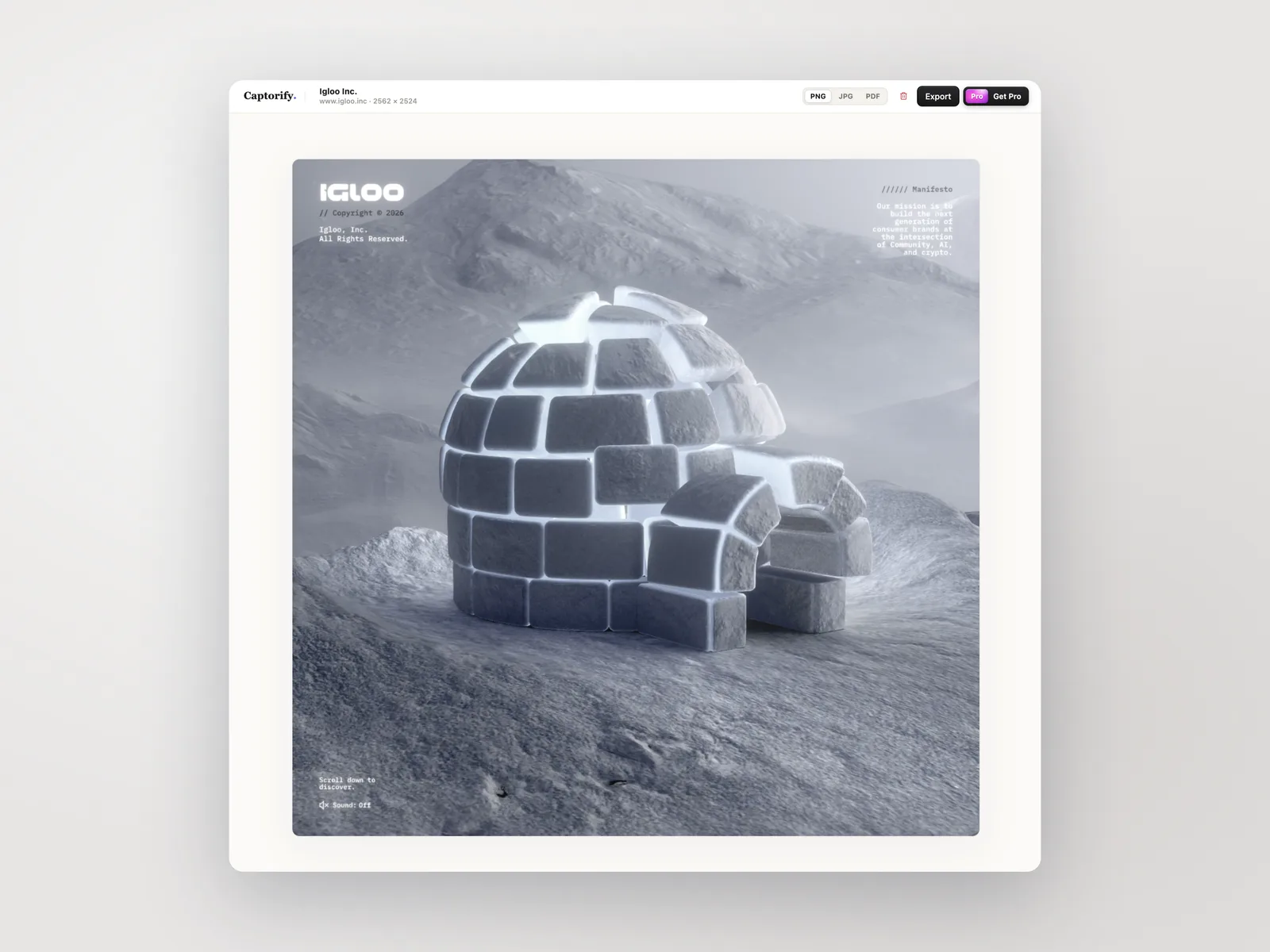
A long pricing page, a documentation article, or a chat transcript can run well past a single screen. Full-page capture turns that entire scroll into one image you can drop into a ticket, a doc, or a review note without piecing screenshots together.
Step 04
What breaks full-page screenshots
Most pages capture cleanly, but a few situations have limits worth knowing. Very tall pages are capped, and images that load only as you scroll may not be ready when their tile is captured.
- Extremely tall pages are clamped, with a warning that shows captured versus total height.
- Lazy-loaded images may appear blank if they have not loaded by capture time.
- For pages past the cap, capture in sections and combine them.
Step 05
Export choices
Once the page is captured you can export it as PNG, JPG, or PDF, all available on the free tier. PDF stitches multi-part captures into A4 pages, with the orientation chosen automatically from the capture shape and content paginated across pages.
- PNG, JPG, and PDF export on the free tier.
- PDF paginates long captures across A4 pages, orientation chosen automatically.
- Optional URL and timestamp overlay on PDF is a Pro add-on.
Step 06
Next workflows
A clean full-page capture is the starting point for most documentation and review work. From here you can annotate it in the editor, redact sensitive details before sharing, or export a paginated PDF for a ticket.
FAQ
Common questions.
Short answers about capture, privacy, sharing, and billing.