Feature
Edit and annotate screenshots without leaving your browser
The Captorify editor turns a raw browser capture into a useful handoff. It explains annotation tools, permanent redaction, polished exports, and the limits of editing when a screenshot carries proof, privacy, or consistent documentation style.
Step 01
Editor tools
The editor opens right after capture so you can clean up and mark up a screenshot without switching to a separate image app. Draw boxes and arrows, add text callouts, and crop to the part that matters.
- Boxes and arrows to point at the important detail.
- Text callouts to add context for the recipient.
- Crop to trim a capture down to what matters.
Step 02
Annotation examples
Annotations turn a screenshot into an explanation. Box the broken button in a bug report, arrow to the field a customer asked about, or label the step a teammate must follow.
Step 03
Redaction versus blur
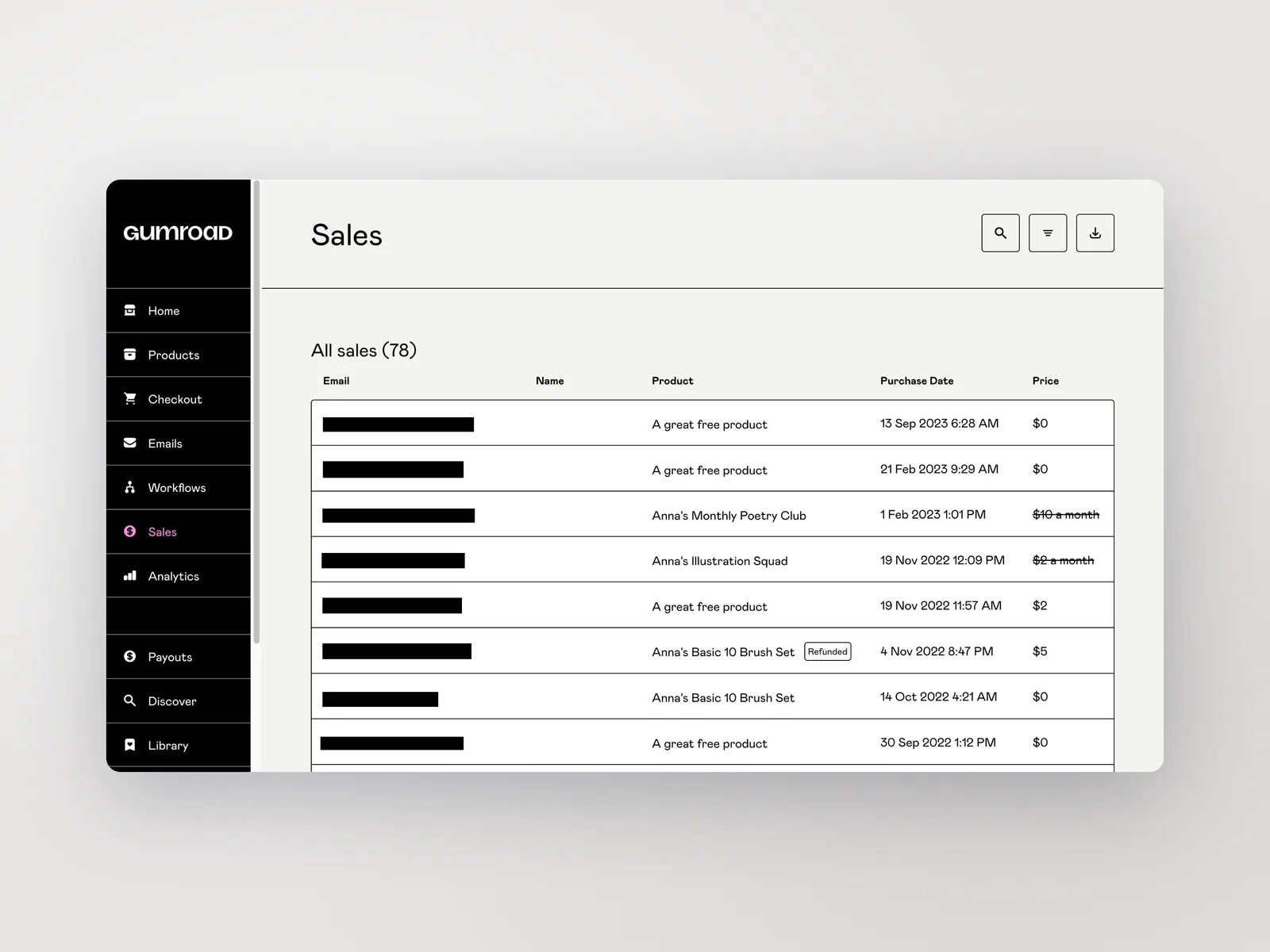
When a capture contains sensitive details, redaction is the tool to reach for. Captorify offers blackout, blur, and pixelate, and bakes all three permanently into the export so there is no removable layer.
- Blackout overwrites pixels and is the safe choice for true secrets.
- Blur and pixelate are baked in but are not guaranteed irreversible.
- Redaction (manual and suggested) is a Pro feature.
Step 04
Beautify and export
When the capture is ready, export it as PNG, JPG, or PDF, all available on the free tier. PDF paginates long captures across A4 pages, with orientation chosen automatically from the capture shape.
- PNG, JPG, and PDF export on the free tier.
- PDF paginates multi-part captures into A4 pages.
Step 05
Editing limits
The editor is built for fast capture cleanup rather than full graphic design. It covers annotation, cropping, redaction, and export, not layered compositing or pixel-level retouching.
Step 06
Next workflows
An edited capture is ready for the next step. Redact sensitive areas before it leaves your machine, share it with a controlled link, or extract its text to copy into a ticket.
FAQ
Common questions.
Short answers about capture, privacy, sharing, and billing.