Tool
Annotate a screenshot
Add arrows, text and boxes to a screenshot, then download a PNG. Free, no account, processed in your browser.
Enable JavaScript to use this tool. Loading the local workspace when JavaScript is enabled. The answers below remain available without it.
Point out the useful detail
- Choose or paste a screenshot
Choose, paste or drop a PNG, JPEG or WebP. Try the fictional dashboard sample if you want to practice.
- Add an arrow, label or box
Select Arrow, Text or Rectangle. Draw on the screenshot or use Add annotation. Select a mark to move, resize or style it; undo a mistake.
- Download and inspect the PNG
Download PNG keeps the original image dimensions and flattens your marks. Open the saved file before sharing it.
An exported annotation example
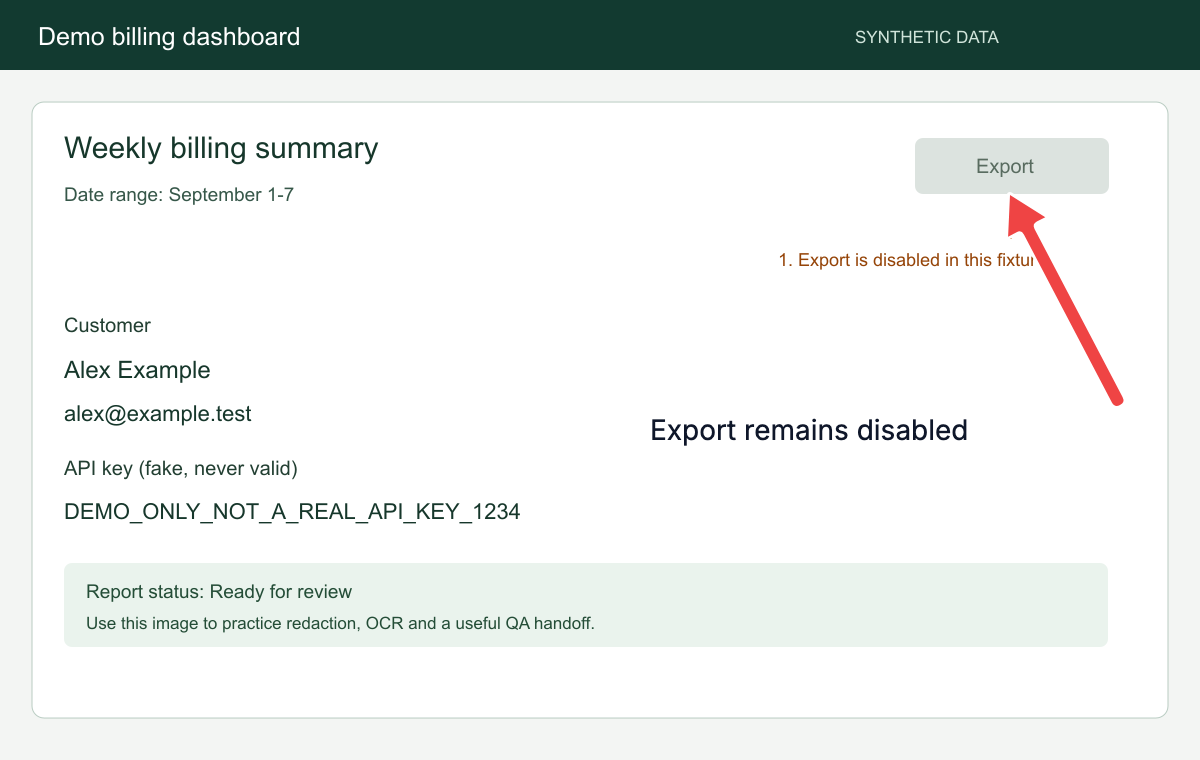
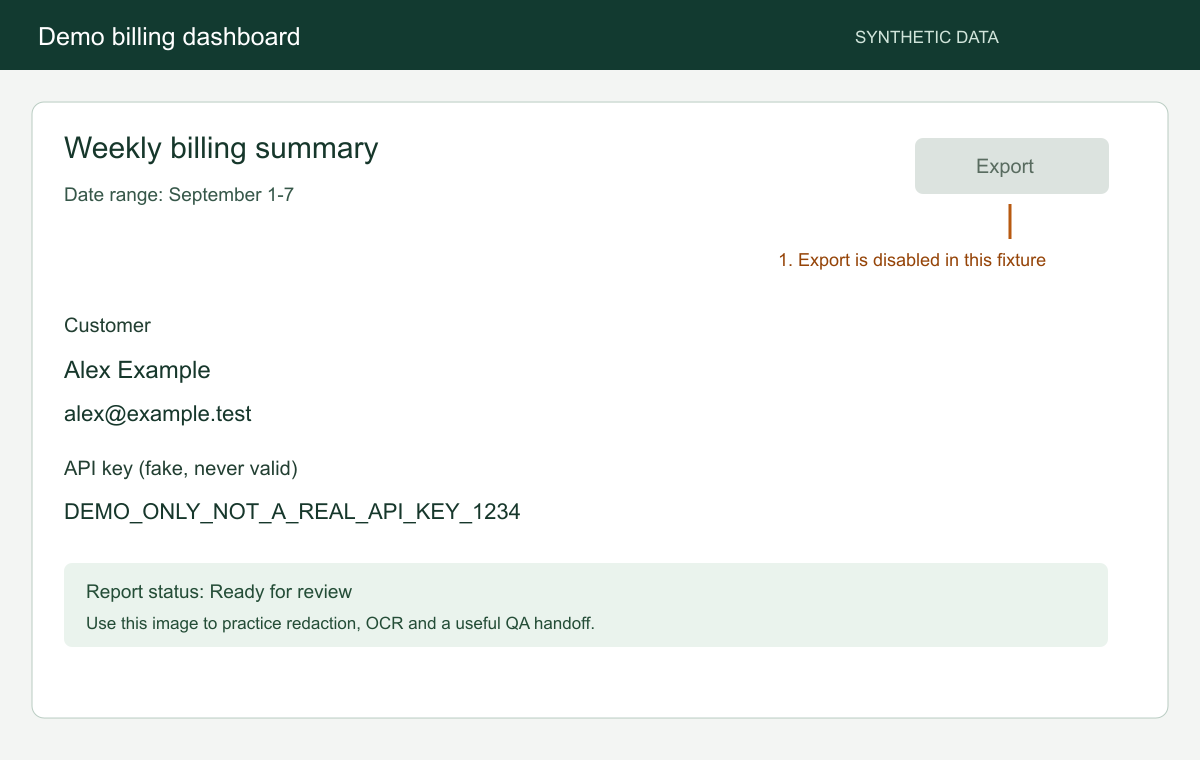
The fictional dashboard sample marks its disabled Export control with a red arrow and the label “Export remains disabled”. This PNG was downloaded from this public tool, not from the cloud editor.
Annotation and redaction have different purposes
Arrows, labels and boxes explain what the reader should notice. They do not safely remove sensitive information. Redact private details first and use the checked redacted PNG as your input.
FAQ