Guide
Screenshot PDF or Print to PDF: which should you use?
Use a screenshot PDF when the visible screen arrangement is the evidence. Use browser Print to PDF when you want a document layout and the page prints cleanly. They preserve different things, so inspect the output rather than treating them as interchangeable.
Decide what must survive
Scroll sideways to read all columns.
Compare the same page both ways
Use an input you are allowed to save. The downloadable example fixture contains no customer information.
- Load the content
Scroll through the page and wait for delayed images to appear. Our published comparison leaves the invoice panel in its default clipped state. To compare an expanded panel, expand it first and repeat both outputs from that same state.
- Save a screenshot PDF
Capture the full page, save the image, and use the converter in Split long images mode with A4 paper and Small (18-point) margins.
- Print the original page
Return to the webpage, choose Print, then Save as PDF. For this comparison use A4, Custom margins of 18 points on every side, background graphics on and headers and footers off. Inspect the native print preview. If your browser cannot set these margins, record its actual settings and do not call them equivalent.
- Inspect both files
Search for a visible word, try selecting it, click a link, and compare the first and final rows. Record omissions before choosing the file to send.
Why browser printing can look different
Websites can define a separate print layout. Menus may disappear, backgrounds may be omitted, columns may stack and long tables may break differently. That can make a document easier to read while making it unsuitable as evidence of the screen’s exact arrangement.
Changing print scale cannot restore content that was never loaded. If a panel is missing, use its own export or expand it before printing.
Keep tall screenshots readable
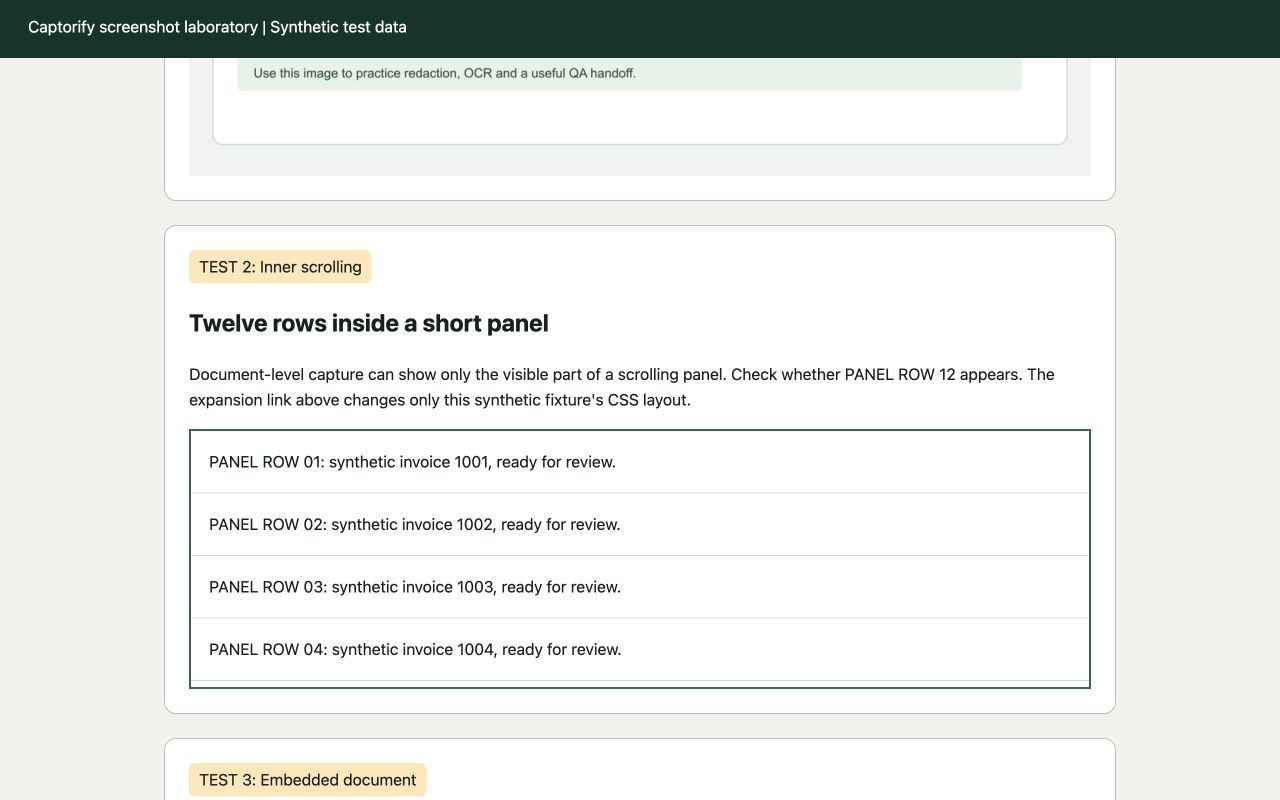
One page per image scales the entire image onto one sheet, which makes a very tall screenshot narrow and its text tiny. Split long images preserves the page-width scale across several pages.
Page boundaries can cut through a line because a screenshot is pixels, not paragraphs. Inspect each boundary. Crop into logical sections before conversion if a clean paragraph break matters.
Verify privacy in the final artifact
After redaction, convert the newly exported image. Do not return to Print to PDF on the unredacted source page. Open the actual PDF you are sending and check names, identifiers, page edges and all appended images.
Neither format proves when a webpage existed or that its contents were authentic. Record the source and capture time separately when they are useful context.
What the two actual files show
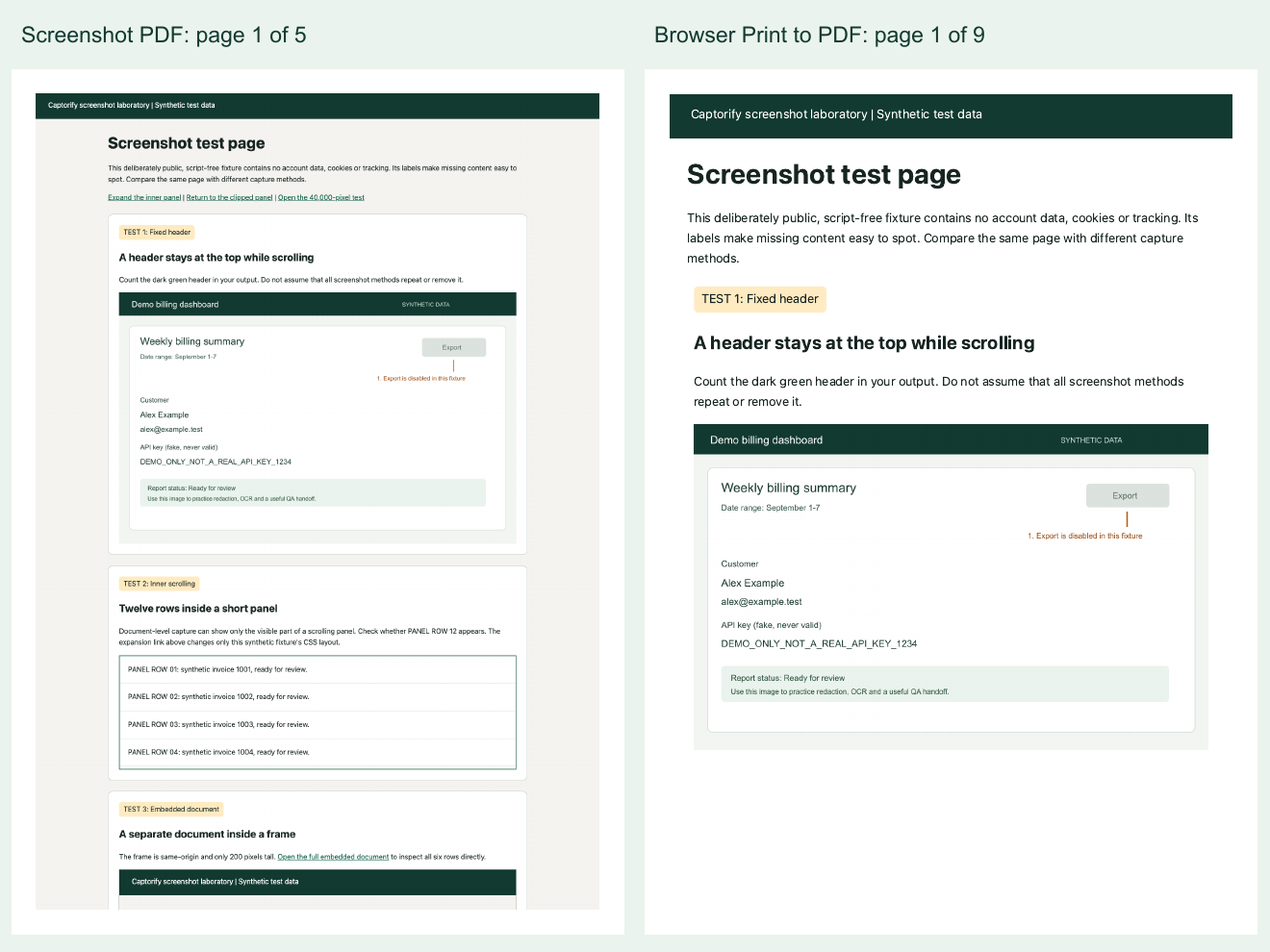
We captured the loaded fictional page with its inner panel clipped, then opened Chrome’s actual native print preview from that same page state. The screenshot converter used A4, Small (18-point) margins and Split long images: five image-only pages. Native print used A4, Custom margins of 18 points on all four sides, background graphics on and headers and footers off: nine pages with selectable text.
The screenshot PDF preserves the screen’s visual arrangement, including the clipped invoice panel. The print layout reflows the page and expands all twelve invoice rows. The embedded document remains incomplete, and the deliberate lazy-loading gap adds blank space. These are observed fixture results, not universal page counts or a promise that all nested content prints.
Both margins are equal, but the renderers’ measured A4 sizes differ slightly: 595.28 × 841.89 points for the screenshot PDF and 594.96 × 841.92 for native print. The downloadable print file contains Chrome’s complete generated native print preview bytes. We retrieved it from the preview iframe; we did not complete Save As. It was not generated with a separate headless PDF command.