Guide
Test full-page screenshots with a repeatable checklist
Use the same test page and settings to compare full-page screenshot methods. Check the first and last rows, delayed images, fixed headers and scrolling panels. Then open the saved file and confirm that the content you need is present.
Open the sample test pages
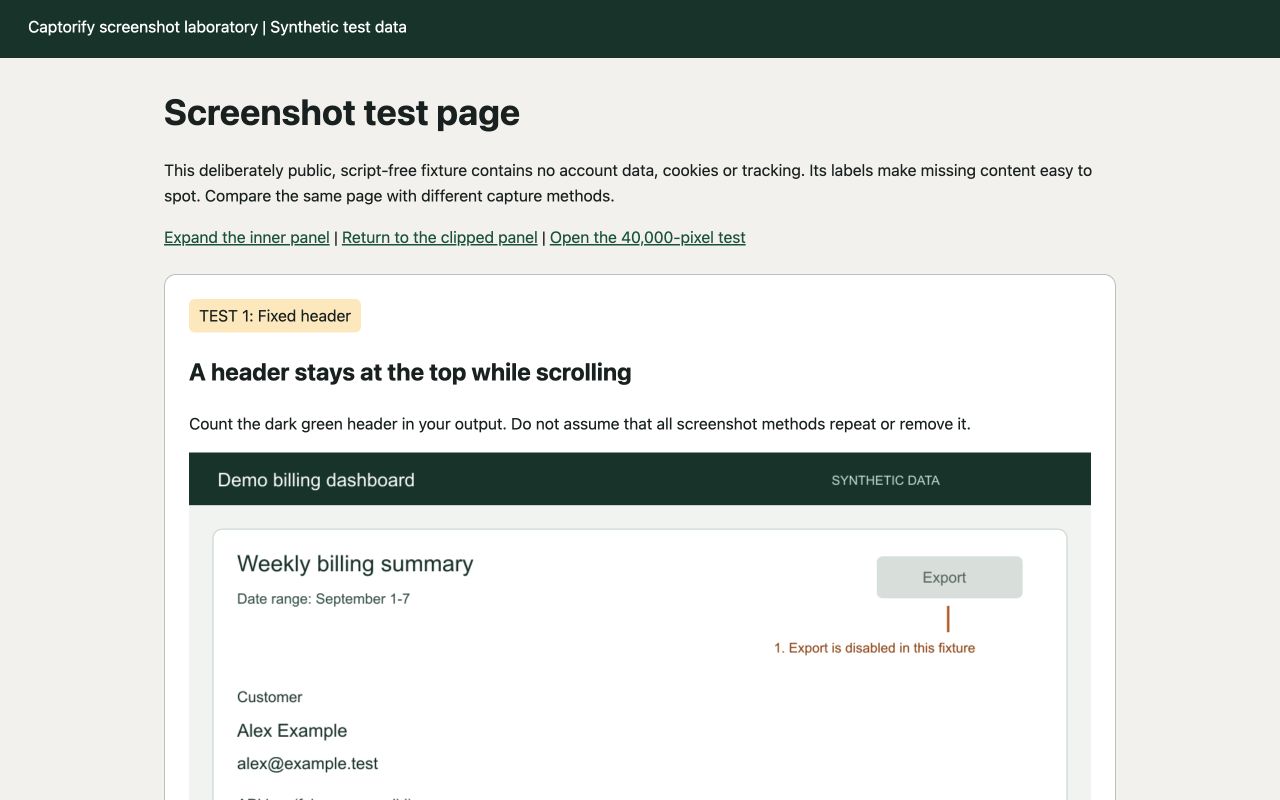
The sample pages use fictional data and include a fixed header, delayed images, a scrolling panel and numbered rows. Use them to check a capture method without sharing a real customer dashboard.
The comparison below used the main test page and a 40,000-pixel tall page on macOS 25.6, at a 1280 x 800 CSS-pixel viewport and device-pixel ratio 1. Chrome tests used version 153. Firefox automation used version 151, and the Captorify Firefox add-on ran in Firefox 153 Nightly.
Chrome screenshots were taken through the DevTools Protocol, and Firefox screenshots through Playwright's full-page screenshot API. These tests did not use the browsers' screenshot menus or store-installed extensions. Captorify 0.2.12 ran as a loaded extension in separate test profiles. Its Chrome profile used a temporary all-sites permission to start capture through automation.
Record a reproducible run
Run one method at a time
- Set the state
Open the test page, use the recorded viewport and zoom, and note whether delayed images have loaded and the panel is expanded.
- Capture and preserve
Run one named capture method and save the original output with a descriptive filename.
- Inspect the image
Compare the header, numbered rows, delayed-image area, inner panel and final page marker.
- Repeat a changed condition
Change only one condition, such as expanding the panel, and record the difference.
Compare the recorded results
All four methods included the lower image and end-of-page marker on the loaded main page. With the inner panel left at its original size, captures showed rows 01 to 04. Expanding the panel made row 12 visible. The Chrome and Firefox automated screenshots included the fixed header once at the top. Captorify hid the header because its overlay setting was enabled in the test profiles.
The tall Chrome protocol output was 40,000 pixels high but repeated earlier rows after the middle and did not show row 400. Firefox's automated full-page request returned a 32,767-pixel limit error and saved no file. Both Captorify extension runs saved two parts, 32,000 and 8,000 pixels high, with row 400 present and no capture warning. These results apply to the tested pages, versions and automation methods. Other pages or capture methods may behave differently.
In the expanded-panel Firefox add-on test, the check before capture could not confirm that the lower image had loaded. The image was present in the saved screenshot. This uncertainty is recorded with the result. The Chrome all-sites permission was test-only; ordinary extension use relies on its normal user action.
Scroll sideways to read all columns.


Captorify Chrome main original

Captorify Firefox main original

Chrome expanded-panel original

Firefox expanded-panel original

Captorify Chrome expanded-panel original

Captorify Firefox expanded-panel original

Chrome tall-page original with repeated rows

Captorify Chrome tall-page part 1

Captorify Chrome tall-page part 2



Use the result to choose a method
If an image is missing, check loading before changing tools. If panel rows are missing, check the inner scroll container. If the image is too tall to print, split it into readable PDF pages and inspect the breaks.
Keep the test page, settings and saved outputs with your documentation so another person can repeat the check.
FAQ
Common questions.
Short answers about capture, privacy, sharing, and billing.