Guide
How to screenshot a website behind a login
Open the page in the browser where you are signed in, check your capture tool's cloud-sync settings, then capture the tab. A URL-based screenshot service does not automatically have your signed-in session. Review the saved image for missing content and private details before sharing it.
Capture the page you can actually see
A dashboard URL can show different content to a signed-in user and an anonymous visitor. The URL alone does not include your browser session.
Use your existing authorized browser session for a manual screenshot. Do not paste passwords, session cookies or tokens into a public screenshot form. If your workplace manages the browser, use the methods its policies allow.
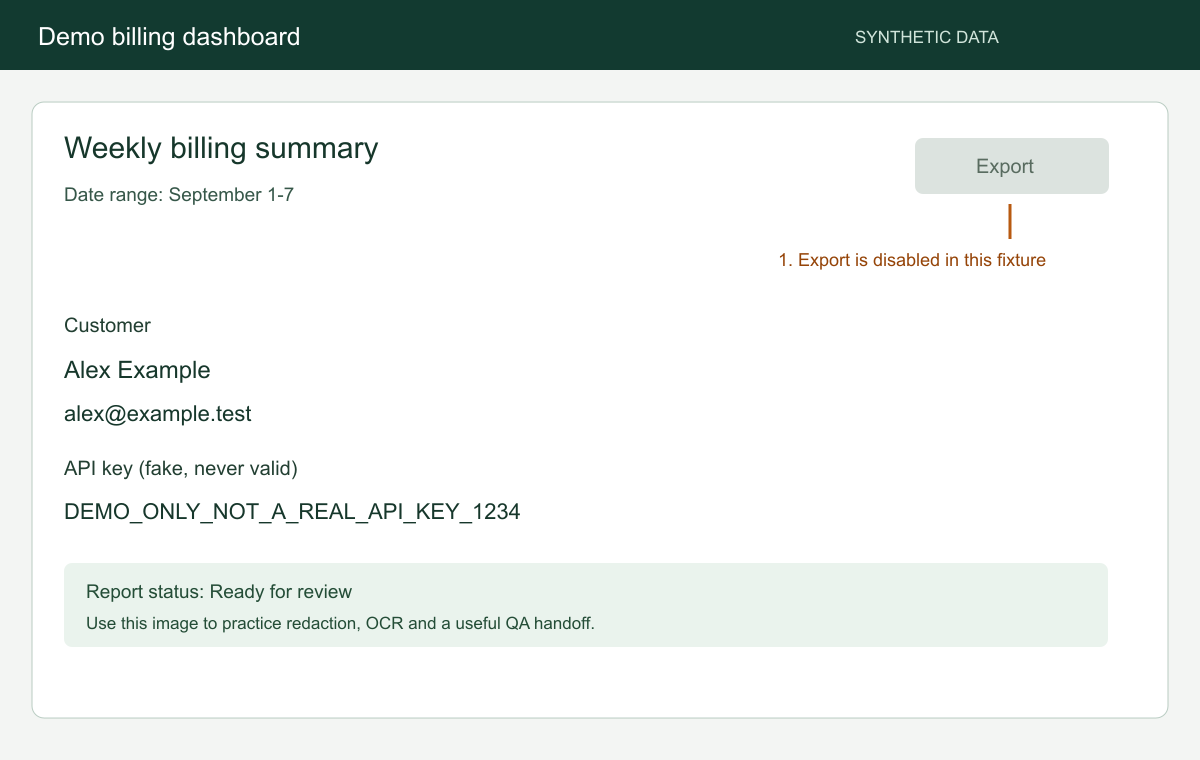
Prepare a useful capture
- Open the intended view
Choose the account, filter and time range that the screenshot needs to show.
- Load the visible content
Wait for charts and images. Expand the relevant section where the application provides that control.
- Choose the area
Capture the current view for one error, or the full page when the surrounding sequence matters.
- Inspect the result
Check that the intended panels and final rows are visible. Review account details and other private information before exporting or sending the image.
Check cloud sync before capturing
Captorify's free extension captures and exports locally. For paid accounts, cloud sync can be enabled by default when you first sign in. Check the setting before capturing a private page.
If a capture must remain off cloud storage, turn off Sync captures to cloud before capturing, or use a native browser capture method. Saving a local export does not undo an upload that already occurred.
Check independently scrolling content
An outer full-page capture does not guarantee that every row in an inner table is visible. Virtualized lists may only render part of their dataset. Use the application's own export, expand the panel or capture smaller sections when appropriate.
A screenshot is a visual record of the displayed state. It is not a complete database export or proof that the displayed data was accurate.
FAQ
Common questions.
Short answers about capture, privacy, sharing, and billing.